How to Set Up IPTV on a Vega OS Firestick With VLC
Amazon's newest Fire TV Sticks run Vega OS, which blocks Downloader, APK files and players like TiviMate. VLC is now in the Amazon Appstore for Vega OS, and it can play IPTV streams. It works best with a single channel link or a short playlist, not a full list of hundreds of channels. This guide shows exactly what works today and how to set it up with your phone.
Can You Watch IPTV on a Vega OS Fire TV Stick?
Yes, with limits. You can't install TiviMate, IPTV Smarters or any APK on Vega OS, but VLC for Fire TV from the Amazon Appstore can play a single IPTV stream link or a short M3U playlist. A full playlist with hundreds of channels often doesn't load properly yet. The short version:
- Install VLC from the Amazon Appstore on your stick.
- Open VLC and go to the Share tab. It shows a web address, a QR code and an access code.
- Scan the QR code with your phone (on the same Wi-Fi) and enter the code.
- On that web page, paste a single channel link or a short M3U playlist link and send it to the TV.
- VLC starts playing. With a short playlist, use the on-screen controls to move between channels.
| What you send to VLC | Works today? (October 2026) |
|---|---|
| One channel's stream link | Yes, reliably |
| A short M3U playlist (a few dozen favourite channels) | Usually, the shorter the better |
| A full M3U playlist (hundreds or thousands of channels) | Unreliable: often too much for VLC right now |
| TV guide (EPG) or channel groups | Not available yet |
VLC for Vega OS is an Early Access release, so there's no guarantee every stream will play. VideoLAN is still adding features, and we'll update this page when playlist support improves.
Is Your Firestick Running Vega OS or Fire OS?
This guide is only for Vega OS sticks. If yours runs Fire OS, the full Firestick IPTV setup guide gives you a better result with TiviMate.
| Your device | System | Which guide? |
|---|---|---|
| Fire TV Stick 4K Select (2025) | Vega OS | This guide |
| Fire TV Stick HD (2026) | Vega OS | This guide |
| Any Fire TV Stick released from 2026 onward | Vega OS (Amazon's stated plan) | This guide |
| Fire TV Stick 4K Max, 4K Plus, Lite, Fire TV Cube | Fire OS | Firestick guide (linked above) |
How to check in 20 seconds: press Home, open Settings → My Fire TV → About and look at the software line. If it mentions Vega OS, carry on here. If it says Fire OS, the regular Firestick guide linked above is the one for you. A box that says "Fire TV Stick 4K" on the front can be either, so check rather than guess.
Why TiviMate and Downloader Don't Work on Vega OS
Vega OS isn't Android
Older Fire TV sticks run Fire OS, which is built on Android. Vega OS is Amazon's own Linux-based system, so Android apps (APK files) can't run on it at all.
No "unknown sources" switch
Vega OS installs apps from the Amazon Appstore only. There's no Downloader route and no setting to allow outside apps, so the usual Firestick IPTV guides stop at step one.
Most IPTV players aren't there yet
Every app has to be rebuilt for Vega OS. TiviMate, IPTV Smarters and Kodi have no Vega OS version at the time of writing.
VLC is the exception, for now
VideoLAN, the team behind VLC, released VLC for Vega OS in the Amazon Appstore in 2026. It plays network streams, which is what IPTV channels are. It isn't a full IPTV player yet, so it suits a handful of channels rather than a complete line-up.
What You Need
A Vega OS Fire TV Stick
Connected to Wi-Fi, signed in to your Amazon account, and updated under My Fire TV › About › Check for Updates.
A phone or computer
On the same Wi-Fi network as the stick. You'll use its browser to send your playlist to VLC, so there's no long typing with the remote.
A short M3U link
VLC needs an M3U link or a single stream link, not an Xtream Codes login. Keep it to the channels you actually watch. If your provider only sent a server, username and password, see the tip below.
Only have Xtream Codes details? Most providers can give you the same account as an M3U link. It usually looks like http://server:port/get.php?username=…&password=…&type=m3u_plus&output=ts. Ask your provider for it rather than building it yourself, and ask for a short version with only your favourite channels, because VLC can't handle a full list yet. New IPTV customers can message our support team with the channels they watch and we'll send a short M3U link sized for VLC. No account yet? Our IPTV 24-hour free trial lets you follow this guide with real channels before you pay anything.
Install VLC From the Amazon Appstore
VLC is free and comes straight from Amazon's store, so there's nothing to unlock and no developer settings to change.
- On the remote, press Home, go to the search icon and start a search.
- Type VLC. You can also hold the microphone button and say "VLC".
- Select VLC for Fire with the orange traffic-cone icon, from the VLC Mobile Team (VideoLAN).
- Choose Get. Installation takes under a minute; when the button changes to Open, press it.
Early Access: the Vega OS version of VLC is new and still being finished by VideoLAN. Menu names may change a little between updates, and some features from VLC on other devices are still on the way. Keep the app updated.
Open the Share Tab in VLC
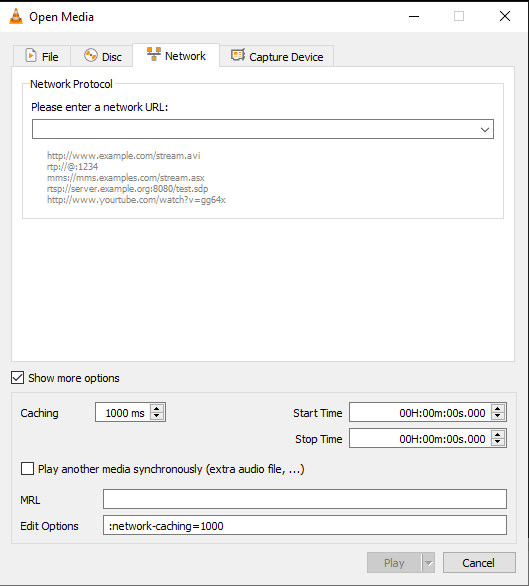
Vega OS sticks have no USB port or file browser, so VLC uses a small, private web page to receive files and links from your phone. The page only works on your home network and is protected by a code.
- Open VLC. On first launch it points you to the Share tab; otherwise select Share from the menu.
- VLC turns on its sharing page and shows three things on the TV: a web address, a QR code and an access code.
- Leave this screen open while you do Step 3.
Send Your M3U Playlist to VLC From Your Phone
There are two ways to get a channel or playlist onto the stick. Whichever you use, keep it small: a single channel link or a short list of favourites works, while a full playlist with hundreds of channels usually won't load.
- Connect your phone to the same Wi-Fi as the Fire TV Stick.
- Scan the QR code on the TV with your phone camera, or type the web address into your phone's browser.
- If the browser warns that the connection isn't private, that's expected for a device on your home network. Choose Advanced and continue.
- Enter the access code shown on the TV.
- Find the box for a network URL, paste your channel link or short M3U link, and send it.
- Look at the TV: VLC starts playing. If nothing happens after 30 seconds, the playlist is probably too big; try a single channel link to confirm everything else works.
- On your phone or computer, open your M3U link in the browser. It downloads a small file ending in .m3u.
- Open the VLC sharing page as described in the other tab (QR code, then access code).
- Choose the upload option and select the .m3u file you just downloaded.
- Once it uploads, find the playlist in VLC on the TV and open it.
An uploaded file is a snapshot. If your provider adds or moves channels, download and upload it again, or switch to the link method.
Watch and Switch Channels in VLC
VLC doesn't have a proper IPTV channel list or TV guide yet. Here's how to get around that until VideoLAN adds one.
- Single channel link: the channel plays straight away. To change channel, send a different link from your phone.
- Short playlist: give it a few seconds to load, then press Select during playback to bring up the on-screen controls and step to the next or previous channel.
- Put the channels you watch most at the top of the playlist, so you reach them with the fewest presses.
- Press Back to return to the list and pick a different channel.
Next time: check VLC's home screen first. Recently played items usually appear under Continue Watching. If your playlist isn't there, send the link again from your phone; it takes under a minute once you know the steps.
VLC on Vega OS vs TiviMate on Fire OS
VLC gets you watching, but it's a media player rather than a full IPTV app. Here's what to expect.
| Feature | VLC (Vega OS) | TiviMate (Fire OS) |
|---|---|---|
| Install method | Amazon Appstore | Downloader + APK |
| Single stream link | Yes | Yes |
| Full M3U playlist (hundreds of channels) | Unreliable for now | Yes |
| Short M3U playlist | Usually works | Yes |
| Xtream Codes login | No (use the M3U version) | Yes |
| TV guide (EPG) grid | No | Yes |
| Channel list, groups and favourites | Not yet (next / previous only) | Yes |
| Catch-up and recording | No | Premium version |
| Cost | Free | Free, with optional Premium |
If the TV guide and favourites matter to you, a Fire OS device such as the Fire TV Stick 4K Max, or an Android TV or Google TV box, is still the better long-term choice. For a Vega OS stick you already own, VLC is the simplest way to start watching today.
Tips for Smooth IPTV in VLC on Vega OS
Vega OS sticks are light devices with 1 GB of memory. These habits make the biggest difference.
- Keep the playlist to your favourites.This is the single biggest factor. VLC on Vega OS can't handle a full line-up, so ask your provider for a short list of the channels you actually watch.
- Try the other stream format.If a channel shows a black screen, ask for the same link with output=m3u8 (HLS) instead of output=ts, or the other way round. One usually plays better.
- Get closer to the router.Use the HDMI extender from the box, or move the router nearer the TV. If your stick works with a Fire TV Ethernet adapter, check Amazon's compatibility list before buying one; a wired connection removes most buffering.
- Power it from the mains adapter.Running the stick from a TV's USB socket can starve it of power, and the first sign is usually a frozen picture.
- Keep VLC updated.The Vega OS version is in Early Access, so updates regularly add features and fix playback issues.
- Restart the stick once a week.Unplug it for ten seconds. It clears memory that builds up after long viewing sessions.
Vega OS IPTV Not Working? Common Fixes
| Problem | Usual reason | What to do |
|---|---|---|
| VLC doesn't appear in the Appstore search | Not available in your country yet, or the stick needs an update | Update under My Fire TV › About, then search again; try saying "VLC" with the voice button |
| The sharing page won't open on your phone | Phone is on mobile data or a different Wi-Fi network | Turn off mobile data, join the same Wi-Fi as the stick, and scan the QR code again |
| Browser says "connection not private" | Normal for a device on your home network | Choose Advanced, then continue to the address |
| Playlist loads but nothing plays | Expired login, or a stream format VLC doesn't like | Check the account is active, then ask for the m3u8 version of the link |
| Nothing happens, or VLC freezes, after sending the playlist | The playlist has too many channels for VLC on Vega OS | Send a single channel link to test, then ask your provider for a short playlist of favourites |
| Picture keeps pausing to buffer | Poor signal or a busy home connection | Move the router closer or use the HDMI extender; a wired adapter helps if your model supports one |
| You only have a server, username and password | That's an Xtream Codes login | Ask your provider for the M3U link version of the same account |
Can't get past a step? Contact support and tell us which step and what the TV shows. A quick phone photo of the screen helps us fix it faster.
Other Ways to Watch IPTV if You Have a Vega OS Stick
VLC is the easiest option today, but it isn't the only one.
Watch the Appstore
More players are being rebuilt for Vega OS. Search the Amazon Appstore for "IPTV" every few weeks. Only install apps listed there; Vega OS can't run anything else anyway.
Use a Fire OS or Android TV device
The Fire TV Stick 4K Max still runs Fire OS and works with our Firestick guide. Android TV and Google TV boxes work with our Android TV guide.
Use the TV itself
Many smart TVs can run an IPTV player without any stick. See our Samsung TV and LG TV guides, or every device in our setup guides.
Vega OS Firestick IPTV: Frequently Asked Questions
Can I install TiviMate or IPTV Smarters on a Fire TV Stick 4K Select?
No. The Fire TV Stick 4K Select runs Vega OS, which only installs apps from the Amazon Appstore and can't run Android APK files. Neither app has a Vega OS version at the time of writing. VLC from the Amazon Appstore is the working alternative.
Can VLC on Vega OS play a full M3U playlist?
Partly. VLC for Vega OS plays a single stream link reliably and usually handles a short M3U playlist sent through its Share tab. A full playlist with hundreds of channels often doesn't load properly yet, and there's no channel guide. It also doesn't accept Xtream Codes logins, so ask your provider for a short M3U link.
Can I sideload apps with Downloader on Vega OS?
No. Vega OS has no option to install apps from unknown sources, and Android APK files can't run on it. Guides that tell you to enable Developer Options and use Downloader only apply to Fire OS devices.
Does VLC show a TV guide (EPG) for IPTV?
No. VLC shows your channels as a list without a programme guide. If you need a full TV guide, use TiviMate on a Fire OS stick, an Android TV box, or a smart TV app.
How do I know if my Firestick runs Vega OS?
Go to Settings, then My Fire TV, then About, and read the software line. Vega OS models include the Fire TV Stick 4K Select and the 2026 Fire TV Stick HD. The Fire TV Stick 4K Max and 4K Plus run Fire OS.
Is VLC on Vega OS free?
Yes. VLC is free and open source, with no ads or subscription. You only need an IPTV service that can give you an M3U or stream link.
Will VLC on Vega OS get better for IPTV?
Very likely. The Vega OS version of VLC is an Early Access release that VideoLAN is still finishing, and features from VLC on other devices are being added over time. Keep the app updated; we'll update this guide when playlist support improves.
Try It on Your Vega OS Stick Today
Ask for a free IPTV test, tell us the channels you watch most, and we'll send a short M3U link that suits VLC. It runs for 24 hours and needs no card.
Written by the New IPTV support team using VideoLAN's own notes on VLC for Vega OS. When VLC or Vega OS changes, we revise these steps.
Sources: VLC for Vega OS (VideoLAN lead developer) · AFTVnews on Vega OS and sideloading · Cord Busters on new Vega OS sticks
